Giving a child an Android phone or tablet this holiday? How to set up Google Family Link first
Google Family Link lets parents approve apps, set daily screen-time limits and bedtimes, and see a child's device location. What it covers, what it doesn't, and how to set it up.


A new phone or tablet is one of the most common holiday gifts for kids, and the easiest time to set it up safely is before it’s wrapped. If it runs Android, Google’s free Family Link tool is built for the job. Here’s what it does, what it doesn’t, and how to set it up, based on Google’s own help pages.
What it can do
Family Link lets a parent create a Google Account for a child, or add supervision to a child’s existing account. Once it’s set up, you can:
- Choose which apps your child can download or buy, block or allow individual apps, and change app permissions.
- Set a daily screen-time limit and a bedtime, and see how much time your child spends in certain apps.
- See the location of your child’s Android device or compatible Fitbit.
- Restrict mature content on Google Play.
Accounts for children under 13, or the applicable age in your country, are created this way. Google Workspace for Education accounts can’t be managed with Family Link.
Check the devices first
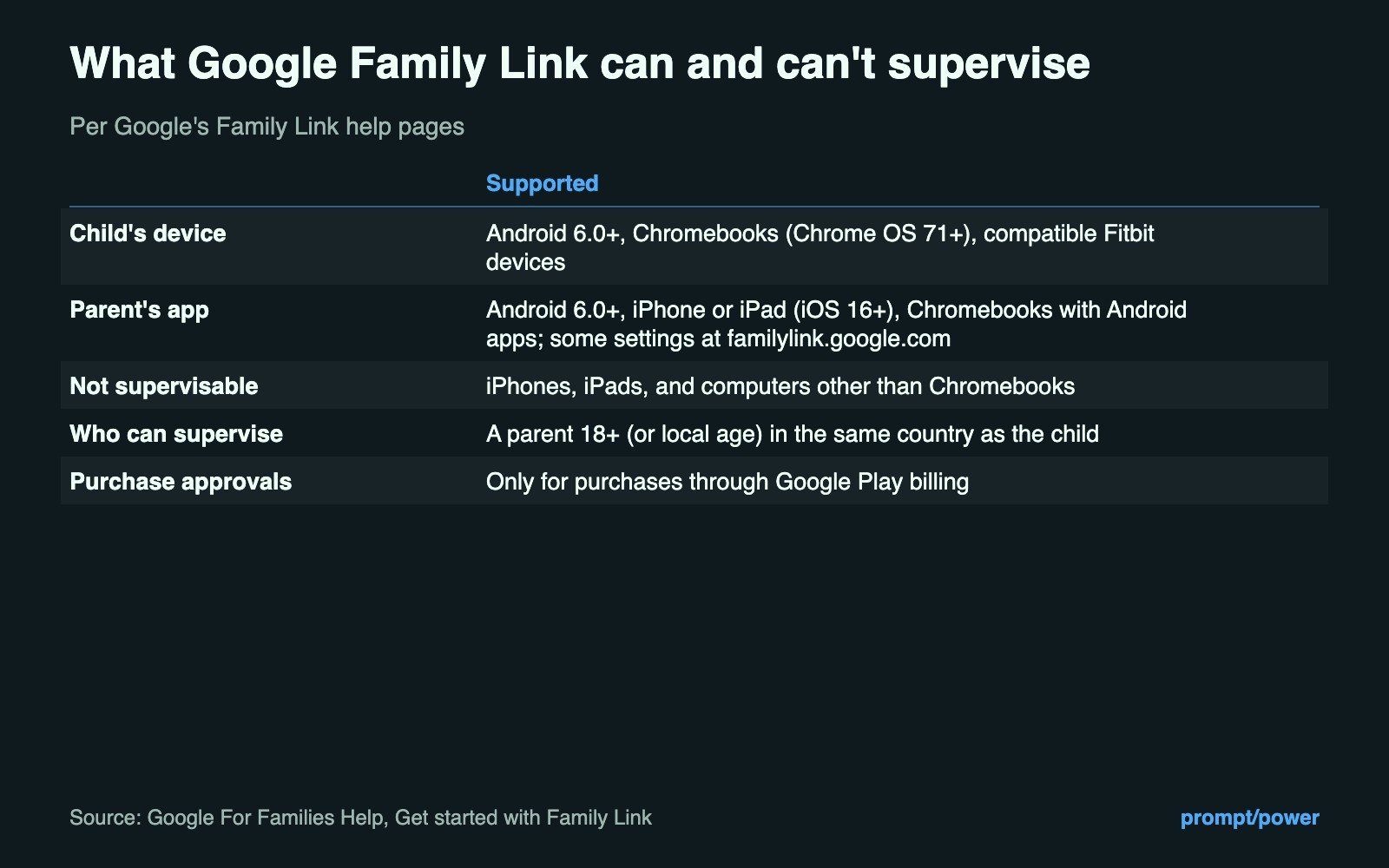
This is the step people miss. The child’s device has to be an Android phone or tablet running Android 6.0 or later, a Chromebook running Chrome OS 71 or later, or a compatible Fitbit. Google says iPhones, iPads and computers other than Chromebooks can’t be supervised with Family Link.
The parent’s side is more flexible: the Family Link app runs on Android 6.0 or later, on iPhone or iPad with iOS 16 or later, and on Chromebooks that support Android apps, and some settings are available on the web at familylink.google.com. The parent must be 18 or older, or the applicable age in their country, and parent and child must live in the same country.
How to set it up
Do this before the gift is opened, while you have the device in hand.
1. Install the Family Link app on your phone and create or add your child’s account.
2. Set a daily limit: select your child, tap Screen time, then Time limits. Turn on Daily limit, tap Weekly schedule, pick a day, enter the limit and tap Done. Use “Apply to all days of the week” if you want the same limit every day.
3. Block or allow apps: select your child, tap Screen time, Time limits, then App limits. Pick an app and set it to Allowed or Blocked.
4. Turn on location: tap Location, then Set up location, choose your child and tap Turn on.
Giving an iPhone or iPad instead?
Family Link won’t work, but Apple has its own controls, built into Screen Time and Family Sharing. Apple’s support page says to set them up from your own device: open Settings, tap Family, tap your child’s name, then Screen Time, and follow the prompts. From there you can:
- Set a daily time budget across categories such as games and social media, and separate weekday and weekend schedules for when apps are available.
- Control who your child can message, call or FaceTime, and require your approval before they add someone new.
- Set age ratings for apps, music, films and books, and block specific apps and websites.
- Turn on Ask to Buy, so “Your child sends you a request for approval when they want to make an eligible purchase or download.”
Apple also has Communication Safety, which blurs photos and videos that appear to contain nudity, gore or violence, including on live FaceTime calls.
What it won’t do
Purchase approvals only apply to purchases made through Google Play’s billing system, so in-app purchases handled another way aren’t covered. Family Link controls the device and the Google account, not what happens inside every app. For AI chatbots and social apps, check each app’s own teen or parental settings too.
The most useful setting isn’t technical. Agree on the rules with your child when you set it up, so the limits feel like a plan rather than a surprise.
Last checked Nov. 24, 2026.
Sources
More from prompt/power: AI chatbots and your teen: a parent’s guide · What the FTC asked AI companion makers about kids · Passkeys, explained
- AI voice-cloning scams: how the fake family emergency call works, and the code word that stops it
- Holiday tech scams to watch for in 2026: fake shops, delivery texts, marketplace buyers and gift card demands
- Parental controls for ChatGPT, Gemini and Claude: what you can switch off, and what you can’t see
Researched and drafted with AI tools, fact-checked against primary sources and approved by a human editor before publishing. Prices and dates are as of publication. Our standards →
Sources- support.apple.com — support page
- support.google.com — Family Link Help Center
Alicia Loveday is a senior editor at prompt/power and a mom who works where fashion meets AI. She leads Tech & Your Money: what Canadians actually pay for phones, plans and gadgets, and the fine print that changes the bill. When the news needs her elsewhere, she goes. She believes every algorithm should come with a return policy. She also writes for Not An Atlas and The Remote.
All stories by Alicia →